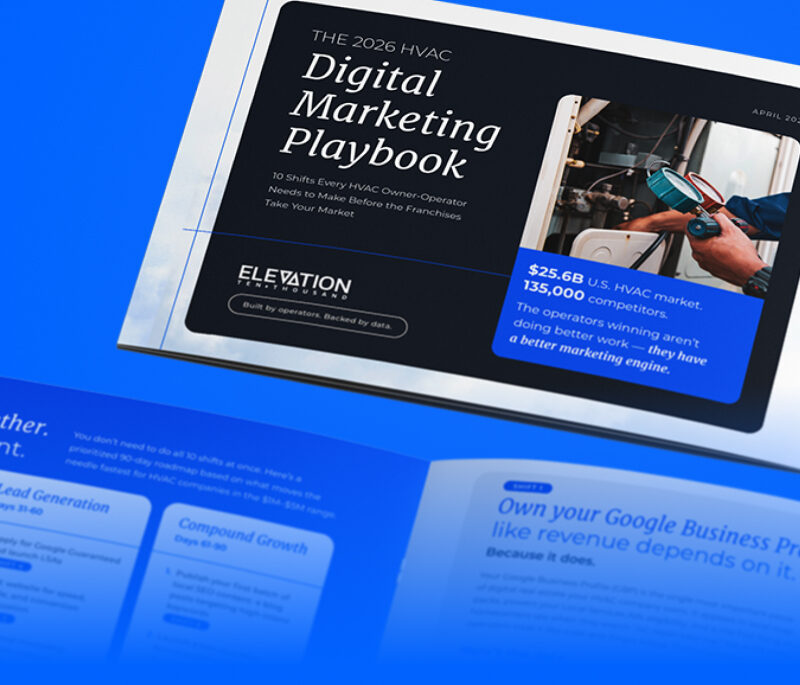
Did you know Google can crawl, index, and even rank PDFs? If you answered “no,” then this piece is for you. Or perhaps you still believe the myth that PDFs are impenetrable by Google — which was debunked a decade ago, by the way.
Today, when utilizing proper SEO (also referred to as search engine optimization) tactics for PDFs, it creates the opportunity for search engines to index the PDF and potentially become a featured snippet. This can lead to increased website traffic with new and repeat customers.
But even if you know how to optimize PDFs for SEO, there’s a good chance your skills could use a refresher. And if you aren’t sure where to start, or don’t completely understand what PDF optimization is — and what it means for your brand, then you’re in the right place.
Content
If you haven’t noticed, Google aims to organize the information available to provide people with the best possible search results.
Whether it’s a product page or a PDF, the content should be well-written, thoroughly researched, and optimized to follow SEO for content guidelines.
Whitepapers, technical documentation, yearly audits, and many other forms of content can be filled with valuable information for consumers. It would be a shame for it to be buried, never seeing the light of day due to the lack of SEO optimization.
Optimized Fonts
Believe it or not, but fonts can increase the file size, so when a variety of fonts are used, it can lead to a substantially sized file. To help with this, it’s ideal to choose an optimized font. More than one font can be used, just remember it can increase the file size.
PDF readers support a variety of fonts, including Times New Roman, Helvetica, and Courier. If the font is not supported, it will have to be embedded.
If you decide not to embed an unsupported font, Adobe might swap it for another font. For some, this might not be a concern. But for those who stick to brand guidelines, it’s important to ensure the proper font is used.
One major appeal associated with PDFs is the control creators have over even the most minute detail. So, allowing Adobe to choose a font, almost defeats the purpose of using the program and creating a customized PDF.
Optimized Title
The pages on your company’s website each have title tags — whether it’s a service page, about us, individual blog post, or something else. So, it would make sense for a PDF to also have a title, especially since it will be found on the website.
Forgoing adding a title would result in the filename being used in its place, which more than likely is not optimized for SEO purposes. And editing the title name couldn’t be easier in Adobe, simply:
- Click File and then Properties.
- Next, edit the Title
Be sure to use a title that lets the audience know what to expect, typically it will incorporate a keyword relating to the subject matter.
Keyword-Rich Filename
A carefully chosen filename is another component of PDF SEO best practices as it will appear as part of the URL. The filename should incorporate a relevant keyword and be search-friendly.
Since it will appear as part of the URL and is a small factor used for ranking, it’s best for the filename to correlate to the topic — like the title. To edit the filename, simply:
- Click File and Save As.
- When the box opens, edit the filename.
As best practice, remove punctuation marks like apostrophes and stop words (and, or, but, the, etc.). An ideal length is approximately 50 to 60 characters and matches the title of the PDF (when possible).
Meta Description
Much like the pages on a website, the PDF will need a meta description. This will provide additional information about the file which is used by search engines to ensure it can be found with relevant search queries.
To edit the meta description of a PDF, use the following instructions:
- Open the PDF in Adobe.
- Select File and then Properties.
- Next, select the Description
- Add the meta description into the Subject
Similar to a page on the company website, the meta description should be a max of 170 characters, typically one sentence. A maximum of three sentences is ok, but it’s important not to exceed the maximum characters.
It’s also important to begin with an action word like learn more, discover, get, find. These words are used to draw in the reader.
It is also ideal to incorporate a keyword or two into the description as organically as possible.
Header Tags
PDFs contain a lot of in-depth information, whether it’s a white paper, press release, case study, study, or another item. To help organize the content and break up the flow, header tags should be utilized.
The H1 would act as the headline of the page, similar to the H1 of a blog post, it should be unique to the page. It should incorporate the primary keyword, whenever possible.
As the content progresses, it would then be broken up by headings like H2 or an H3, much like this blog post has been.
The maximum length of a header is 100 characters, but less is ideal.
Mobile-Friendly
It should come as no surprise that people are consuming more and more content on their mobile devices. Failing to optimize content, like a PDF, for a tablet or phone would be a significant error.
In fact, when an audience member lands on any section of the company’s website while using a mobile device, if it isn’t mobile-friendly they are more likely to leave the website — which increases the overall bounce rate.
Increasing the bounce rate can have a negative impact on the overall page ranking for the website. So, let’s do what we can to help keep readers on the website for as long as possible.
To make a PDF mobile-friendly, you will need to:
- Left align the text to help people scroll through the document with ease.
- Use images sparingly. Yes, it can be nice to break up the text, but images will increase the file size. If an image is needed, make sure it is relevant and adds value to the content.
- Use subheadings to add breaks to text. Utilizing headings (like H2, H3, etc.) not only help to add natural breaks to content, but it also adds SEO value when created properly.
- Keep the paragraphs short. Much like with the content on the rest of the website, shorter paragraphs are better for internet consumption.
Alt Text for Images
In situations where an image is necessary, it’s vital to include alt text. Alt text is what appears in place of an image on a website if the image doesn’t load or if the person looking at the website is using a screen reader.
Including alt text with an image is also important because it allows search engines to better crawl the website and understand what is on the page.
Alt text should be descriptive and utilize a keyword but avoids keyword stuffing.
Work with a Professional Who Understands SEO Best Practices
Search engines like Google have understood for quite some time that PDFs are important, so it’s time for business owners to embrace SEO best practices for PDFs.
With this in mind, we need to treat PDF documents with the same level of importance that is shown by search engines.
But it can be a big task to take on, not only writing a document that is captivating and informative for the audience, but one that has also been optimized to meet SEO best practices. Instead of going at it alone, it is ideal to work with a group of experts that know how to harness the power of SEO to help benefit your brand.